#4 – 20133 102nd Avenue, Langley, B.C. V1M 4B4 Canada

#4 – 20133 102nd Avenue, Langley, B.C. V1M 4B4 Canada
Choosing a Control Room Console Desk is not just a matter of appearance or available floor space. The desk must support the people, screens, and equipment used during real operating shifts. A useful starting point is to map each operator’s tasks, then measure monitor sizes, keyboard reach, chair movement, and equipment clearances. Details matter. A monitor arm that blocks a sightline or a cable bundle crossing a service area can create daily friction.
Comfort matters, too. Operators may remain seated for long periods, so check legroom, working height, reach zones, and glare from nearby windows or lighting. If staff alternate between sitting and standing, confirm that the adjustment range suits the actual users and equipment. No desk fits every room. That is worth remembering. A layout that works for one team may feel cramped when staffing, technology, or procedures change.
Before selecting a model, compare materials, load capacity, cable-management options, access panels, and available expansion space. Use equipment specifications rather than estimates, and ask operators to review a proposed layout with full-size measurements or a mock-up. Manufacturer guidance can clarify installation and maintenance requirements, but it cannot replace testing the arrangement in the room. Some compromises may remain, especially in older facilities. Naming them early helps teams make a more dependable choice and avoid costly changes later.
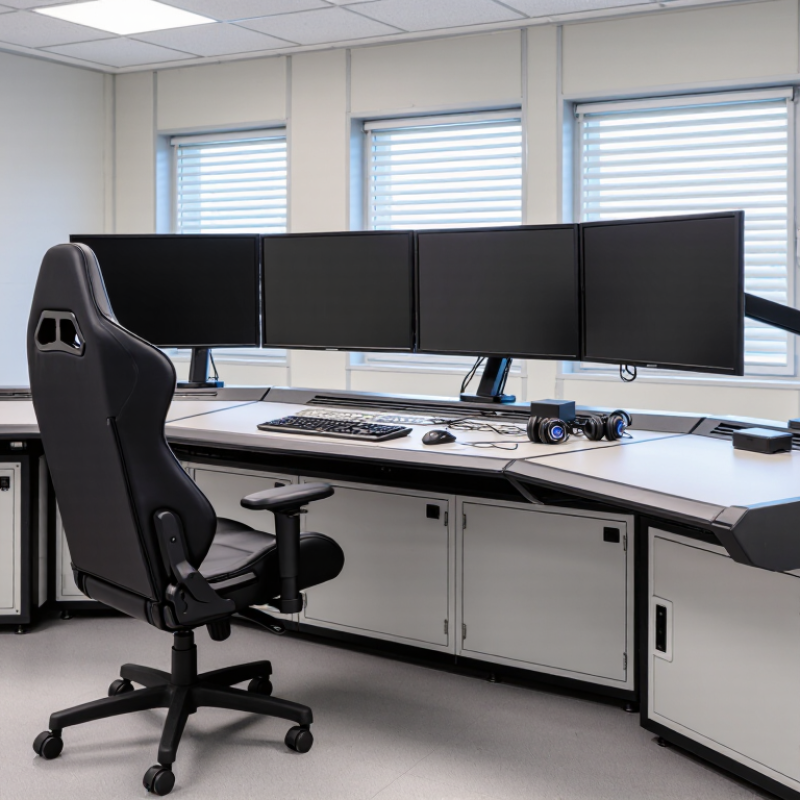
How to Choose a Control Room Console Desk?
Define Control Tasks and Apply ISO 11064 Control-Room Design Principles
Start by listing the work operators actually do: monitor displays, respond to alarms, make calls, and coordinate handovers. Note how often each task occurs and what information must stay visible. ISO 11064 emphasizes designing around people, tasks, and the control-room environment. Use that thinking to set console height, screen positions, and clear working space—not just to fit equipment into a room. An operator who watches a process overview while entering data needs a different layout from someone focused on a single alarm panel. Small details matter.
Check sightlines from both seated and standing positions. Place frequently used controls within comfortable reach, and leave room for chairs, cables, and maintenance access. Test a mock-up with operators during realistic tasks. Ask where they lean, turn, or lose sight of a screen. Their habits may challenge the plan. That assumption may be wrong. ISO 11064 offers useful design guidance, but it does not replace task-specific evaluation or operator feedback.
Tips: Mark monitor edges with tape on a wall before ordering equipment. Try the layout during a busy shift, not only during a quiet walkthrough. Record discomfort and awkward reaches; small issues can become routine.
ISO 11064-4 offers ergonomic guidance for workstation layout and dimensions in control rooms. Use it to plan around real tasks, equipment, and operator movement—not just the available floor area. List the controls, displays, and documents operators use, then map their positions and frequency of use. Frequently used controls should sit within comfortable reach, while screens should remain easy to view without repeated neck turning.
Measure the real task.
Check the console against the people who will use it. Record seated and standing eye levels, reach distances, chair movement, and leg clearance. A tape measure and a full-size cardboard mock-up can reveal awkward reaches before a desk is built. Small errors matter. A control placed just beyond an easy reach may be used dozens of times each shift.
Treat the standard as a design reference, not a substitute for observing operators. Test the proposed layout during realistic tasks, including busy periods and shift handovers. Note glare, blocked sightlines, cable paths, and equipment that crowds the work surface. One compromise may remain: a layout that suits one operator may not fit another. Adjustable seating and carefully positioned equipment can reduce that mismatch, but they cannot fix every poor console dimension.
When choosing a control room console desk, assess screen placement as part of the whole workstation. ISO 9241-5 offers ergonomic guidance for workstation layout and posture, rather than one fixed screen distance for every operator. Check whether users can read displays with a relaxed neck and shoulders. Keep frequently viewed screens near the natural line of sight, and place controls within comfortable reach. Small details matter.
Test the arrangement from a seated position, not just on a floor plan. Adjust chair height, then check whether the screen edges block sightlines to other displays. Look for reflections from overhead lights and bright windows. A matte surface may help, but it cannot fix a poorly angled monitor. Leave room for keyboards, notes, and forearms without forcing users to twist. The fit can vary between operators, so adjustable mounts and desk sections are worth considering.
A console can look orderly and still feel awkward after an hour. That is easy to miss during a quick review. Ask operators to work through typical tasks and note where they lean, squint, or reach repeatedly. Recheck placement for shorter and taller users. Not every room allows an ideal layout; document the compromises and revisit them after real shifts.
How to Choose a Control Room Console Desk?
Assess Lighting, Noise, and Thermal Conditions Using ISO 11064-6
A console desk should fit the room’s working conditions, not just its floor plan. ISO 11064-6 addresses environmental factors in control centres, including lighting, acoustics, and thermal comfort. Use it as a design reference, then verify conditions in the actual room. A glossy desktop may reflect overhead lights onto screens. Matte finishes can reduce glare, but test samples under the room’s real lighting before ordering.
Noise deserves equal attention. Listen from seated operator positions during normal equipment use, not only when the room is quiet. Fans, alarms, and nearby conversations can compete with radio or phone audio. Desk layout and barriers may help, though barriers can also block sightlines. Thermal comfort varies across a room; check for warm equipment zones, cold air vents, and airflow at seated height. Small differences matter during long shifts.
Tips: Measure light at screen level and note reflections at different times. Record background noise and temperature in occupied conditions. Ask operators to test a mock-up for reach, glare, and airflow. Keep the readings; one visit may miss a seasonal problem. I would avoid choosing solely from a showroom sample. The room itself can be less forgiving.
| Assessment dimension | What to measure or check | Practical design target | Implication for console selection and layout |
|---|---|---|---|
| Ambient lighting | Measure horizontal illuminance at the work surface and note variation between console positions. | Use a project target of approximately 300–500 lux for routine desk work; provide dimming where operators need lower ambient light for screen-based tasks. | Choose a desk finish that is matte and low-reflectance. Provide controllable, evenly distributed lighting rather than relying on bright fixtures directly above displays. |
| Screen reflections and glare | Inspect display reflections from windows, luminaires, and glossy surfaces from normal seated viewing positions. | Displays should remain readable without distracting reflected images or uncomfortable glare throughout normal operating conditions. | Check console depth, monitor mounting range, and orientation options. Position screens away from direct window reflections and use blinds or suitable glare control where needed. |
| Lighting controls | Check whether lighting can be adjusted by operating zone and whether controls are accessible to staff. | Allow operators to adjust lighting to suit screen viewing, paper tasks, shift changes, and maintenance activities. | Coordinate console zones with lighting-control zones. Avoid layouts where one operator’s lighting adjustment creates glare or poor visibility for others. |
| Background noise | Measure A-weighted sound level (dBA) during representative normal operation and note intermittent sources such as alarms, printers, and ventilation. | As a project screening goal, aim for a steady background near or below 45 dBA where practicable; assess speech intelligibility and alarm audibility in the actual room. | Allow space for acoustic treatment and keep noisy equipment away from operator positions. Verify that desk-mounted equipment does not add distracting fan or vibration noise. |
| Speech and alarm audibility | Test operator-to-operator communication, radio use, telephone calls, and required alarm signals at representative seating positions. | Speech should be understandable without excessive vocal effort, while operational alarms remain clearly distinguishable from routine sound. | Use console arrangements that support clear sightlines and communication. Consider acoustic screens carefully, as they can reduce speech transmission or mask alarms. |
| Air temperature | Record temperature at operator level across occupied positions and during different equipment and occupancy loads. | A typical initial comfort range for evaluation is approximately 20–24 °C; confirm the suitable setpoint with occupants, clothing, activity, and applicable requirements. | Check that the desk does not block supply-air outlets or create stagnant zones. Keep heat-producing equipment and enclosed cable spaces from warming operator areas. |
| Relative humidity | Measure relative humidity during representative seasonal conditions and review any recurring dryness or condensation concerns. | A practical project range is about 40–60% relative humidity, subject to building constraints and local guidance. | Specify materials and equipment suitable for the expected indoor environment. Coordinate console ventilation openings with the room’s heating and cooling strategy. |
| Air movement and drafts | Check for direct airflow on seated operators, especially near supply diffusers, doors, and cooling equipment. | Maintain comfortable air movement without persistent drafts at the head, hands, or legs. | Review the console location against diffuser positions before fixing the layout. Avoid placing operators directly in concentrated supply-air streams. |
| Heat from equipment | Estimate heat from displays, computers, radios, and other devices; inspect temperatures in equipment enclosures during operation. | Keep equipment within its specified operating limits and prevent noticeable heat buildup around the operator’s legs or work surface. | Provide adequate ventilation and accessible cable/equipment compartments. Confirm that the proposed desk configuration does not obstruct cooling airflow or maintenance access. |
| Measurement and validation | Assess conditions at representative seated positions, including the busiest console locations and different operating periods. | Document instruments, measurement locations, operating conditions, results, and any corrective actions. | Use ISO 11064-6 as part of the environmental-design assessment, alongside applicable local requirements and project-specific criteria. Verify conditions after installation and occupancy. |
Note: The numerical values above are practical project screening targets, not quoted limits from ISO 11064-6. Confirm final criteria against the applicable edition of the standard, local regulations, equipment requirements, and a site-specific assessment.
Verify Equipment Loads, Cable Routes, and Future Expansion Needs
Start with a measured equipment list, not a desk catalogue. Record the weight and footprint of each monitor, keyboard, control panel, and computer. Include arms and mounting plates; their loads can concentrate on a small area. Check the console’s rated capacity against the full setup, with a sensible allowance for changes. Heavy equipment should sit where the frame provides support. A tidy layout is not always a safe one.
Map cable routes from each device to power and data connections. Measure real cable lengths, including turns around the desk frame. Keep power and signal cables separated where practical, and avoid routes that cross leg space or block access panels. Leave slack for monitor movement, but secure it so loops cannot snag. Removable covers help with maintenance. Labels help more than people expect.
Plan for the next equipment change, not an imaginary perfect future. Allow space for another monitor, a replacement computer, or a different control panel. Confirm that spare space will not block sightlines or operator movement. Ask operators to test reach and screen positions using a temporary mock-up. Plans change. One awkward cable route may still escape the drawing, so inspect the installed setup before the console is put into daily use.